
How to Access VPS via VNC in Virtualizor


You can access your VPS via VNC in an emergency, such as when a firewall blocks your IP, the Internet connection on the VPS is not working, and you cannot access SSH. Also, you can use VNC for OS installation/reinstallation.


1. Log in to your Virtualizor Control Panel.

2. From the left side panel, click on List VPS.
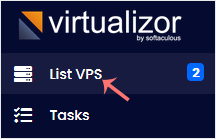
Virtualizor-list-vps-menu.gif


3. Hover your mouse on the appropriate VPS, and that line will be highlighted. Then click on the Manage icon in the highlighted line.

Virtualizor-click-manage-vps.gif


4. On the top right side, click on the VNC icon.

Virtualizor-VNC-icon.gif


5. The new popup box will open. Click on HTML5 VNC Client.

Virtualizor-VNC-Choose-option.gif


6. The VNC area will resemble the following screenshot:

Virtualizor-HTML5-VNC-Area.gif


  • 0 أعضاء وجدوا هذه المقالة مفيدة
هل كانت المقالة مفيدة ؟

مقالات مشابهة

How to Reboot/Restart VPS in Virtualizor

  You can restart VPS via the command line or Virtualizor.   How to Reboot/Restart a VPS via...

How to Forcefully or Gracefully Shut Down the VPS in Virtualizer

You can shut down the VPS in two ways - forcefully or gracefully in Virtualizor.   How to...

How to Start/Boot Your VPS in Virtualizer

  If your VPS is down/offline, you can start it using Virtualizor.   1. Log in to your...

How to Reinstall an OS Using the Virtualizor Automatic OS-Reinstaller

  You can easily Install/Reinstall the operating system using the Virtualizor. However, note...

How to Manually Install/Reinstall an OS Using Virtualizor for a Customized Installation

  The Virtualizor's automatic reinstall option does not allow you to modify or create a custom...